Enable remote control of Brandtrack Player
There are two methods of controlling Brandtrack Player, via a local socket/pipe and remotely via a web portal or HTTP REST API using the Brandtrack WebControl application.
WebControl Configuration
The WebControl application opens the following configuration window when run for the first time. first time:
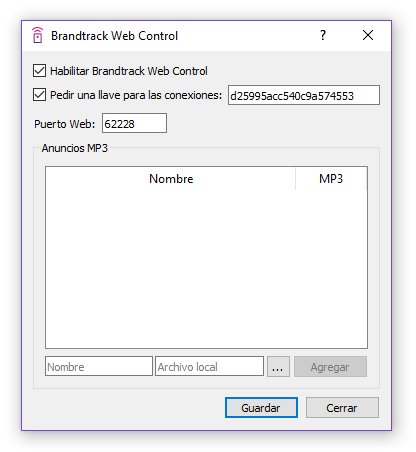
By default WebControl creates a random authentication key and port for connections. After enabling WebControl for the first time, it and the Player will be restarted, and in the future the Player itself will start WebControl automatically.
Add MP3
In WebControl you can add mp3 files for manual playback, as long as they exist on the local computer. These files exist on the local computer, they can be added using the configuration interface.
Menu
When WebControl is active, its icon will appear in the operating system taskbar, it has several options available:
Open Portal: opens a local browser with the web portal.
Configure: opens the configuration window
Copy Key: copies the authentication key to clipboard
WebControl Portal
The web portal is the main interface to interact with Brandtrack Player remotely, with buttons to control its operation and to play the remotely, with buttons to control its operation and to play MP3s of your choice. To access it you can use a browser via HTTP and the configured port, for example, if the port is 62228 , the web would be http://localhost:62228 on the local device.
API Manual
The WebControl server responds to the following requests by HTTP POST:
Endpoint |
Action |
| /rc/fadeOut | Mute the application |
| /rc/fadeIn | Restore application sound |
| /rc/override?index=:id | Play an MP3 file* |
*The mp3 file ID is an integer index, starting at 0.
Authentication Key
When the key authentication option is enabled, HTTP calls must have a header of the type "Authorization", e.g. a header of type "Authorization", for example:
Authorization: bearer d28995acc540c9a574553.
Example in Javascript
var xhr = new XMLHttpRequest();
xhr.open("POST", "/rc/fadeOut", true);
xhr.setRequestHeader("Authorization", "Bearer d28995accc540c9a574553");
xhr.send();
Manual Configuration
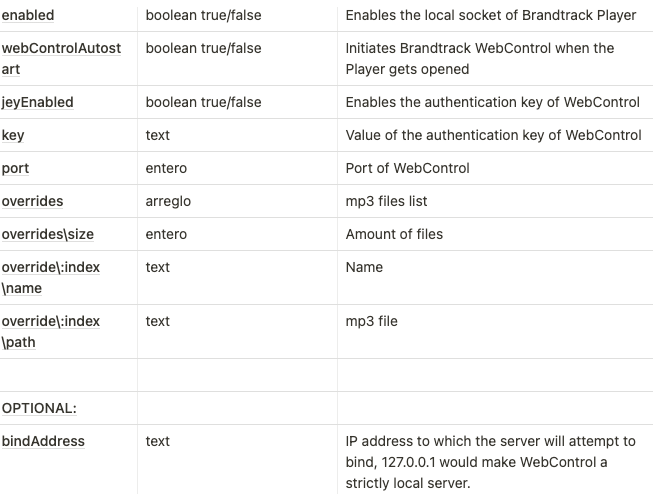
WebControl can also be configured manually by editing the Brandtrack Player configuration file, which is located in %AppData%%Brandtrack Player.ini in Windows.
Example of a configuration:
[rc]
enabled=true
webControlAutostart=true
keyEnabled=true key=d28995acc540c9a574553
port=62228
overrides\size=3
overrides\1\name=Caja
overrides\1\path=C:/caja.mp3
overrides\2\name=Caja 2
overrides\2\path=C:/caja2.mp3
overrides\3\name=Cierre
overrides\3\path=C:/cierre.mp3
Documentation of the options